WakeBox
- 4.1
- Rating
- 1.00M
- Installs
- Free
- Price

 Analysis by App-foxy
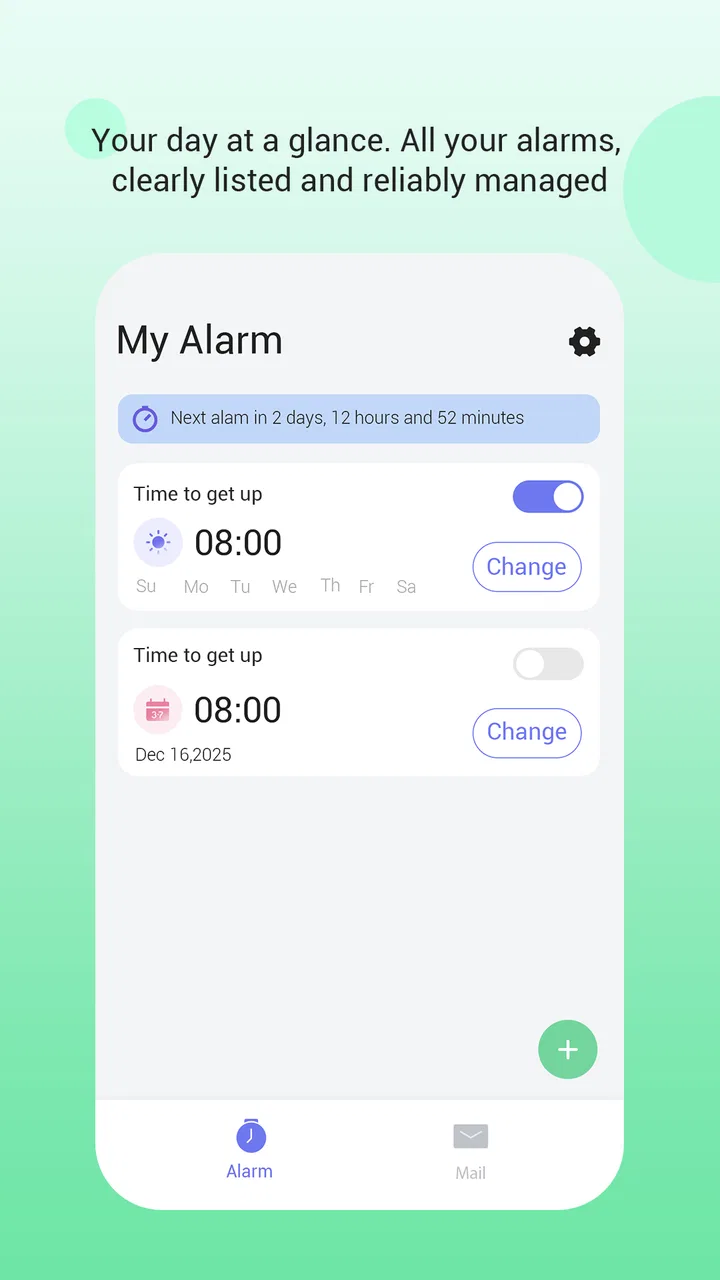
Waking up sounds simple until a normal alarm fails at exactly the wrong moment. I approached WakeBox as a practical productivity app rather than another sleep-tracking tool, and that distinction matters. Its job is to make the alarm difficult to miss, using full-screen alerts and an optional email-access feature. In my view, it is most interesting for people who need a dependable wake-up prompt, not for anyone looking for detailed sleep analysis or a large collection of lifestyle extras.
The app is free, belongs to the productivity category, and is made by BLYTHEWOOD NY LLC. It has built a strong early audience, with more than a million installs and a 4.6 average from roughly 1.6 thousand ratings. Those figures suggest that the straightforward approach is connecting with many users, but they do not replace personal testing. An alarm can feel reliable for one person and awkward for another, especially when visibility, hearing, movement, attention, or the surrounding environment affects how an alert is noticed.
How WakeBox presents an alarm when ordinary notifications are easy to miss
The clearest strength is the full-screen alert. A small notification can disappear among messages, calendar reminders, and system icons, while a full-screen wake-up prompt is much harder to overlook visually. I find that especially useful when the phone is on a bedside table and I am not actively checking it. The design choice puts the alarm itself ahead of the rest of the phone, which is exactly what a wake-up app should do.
You May Also Like

 Blood Strike: 2.5 Anniversary
Blood Strike’s Loadouts Turn Every Drop Into a Tactical Gamble
A close look at Blood Strike’s custom loadouts: how fast access to signature weapons reshapes its battle royale rhythm, rewards preparation, and narrows the gap between fights.

 Pandora - Music & Podcasts
Pandora’s Music Is Easy to Start, but Harder to Recover
Pandora’s strength is its low-effort path from a seed to a station. Its weak spot is how much confidence it asks you to place in connection, setup, and quiet recovery.

 8 Ball Pool
 Is Built on Rivalries, Rematches, and Routine
A close look at the rivalries, rematches, shared routines, and unanswered safety questions that turn a quick pool match into a persistent mobile community.

 Samsung Music
’s Quiet Strength Is Playing What You Already Own
Its reach comes less from spectacle than from dependable access to a personal library. That simplicity is both the app’s strongest retention engine and its ceiling.

 AccuWeather: Weather Radar
AccuWeather Review: A Quick, Clear Forecast for Everyday Decisions
For everyday plans, the best forecast is the one you can understand quickly. AccuWeather makes rain timing, radar, and local conditions easy to act on, with a few trade-offs.

 Hill Climb Racing
Why Hill Climb Racing Still Turns Crashes Into One More Run
A tiny car, a bumpy hill and one more upgrade: Hill Climb Racing keeps resurfacing because its simple chaos makes every near-miss feel personal.
More From Our News Desk



That focus also makes the app easier to understand at a glance. A person who wakes slowly, has limited attention immediately after sleep, or struggles to distinguish a tiny notification from other icons benefits from an alert that takes over the display. The most useful accessibility-minded choice here is visibility: the alarm is treated as an event that needs attention, not as background information.
At the same time, a full-screen alert is not automatically clear for every user. Readability depends on the phone’s display, text size, contrast settings, viewing distance, and the user’s eyesight. I would check the alarm screen while fully awake rather than assuming it will be comfortable at dawn. If the wording or controls feel too small, the app may be less suitable than a device or alarm system with more adjustable visual presentation.
Navigation should appeal to people who prefer a focused utility over a crowded dashboard. WakeBox is not presented as a broad sleep companion with charts, coaching, or a social layer. That narrower purpose reduces the amount of information a user has to process. For someone who wants to set an alarm and leave the rest alone, this is a welcome trade-off.
There is a practical workflow I recommend: create an alarm during the day, lock the phone, and observe how the full-screen alert appears when it activates. This test answers more useful questions than reading a feature list. You can check whether the text is comfortable, whether the screen is obvious from your sleeping position, and whether the interaction makes sense before relying on it for an important morning.
Readability is helpful, but the phone still matters
WakeBox benefits from using the entire screen, yet it remains dependent on the phone’s own display and system behavior. A person with low vision may appreciate the large visual interruption but still need stronger text scaling, a different display configuration, or a separate tactile or audible aid. I would not treat the app as a replacement for every kind of alarm support; I would treat it as one layer in a setup.
The same applies to people who wake in a dark room. A bright full-screen alert can be easy to see, but it may also feel abrupt or uncomfortable. If you are sensitive to sudden light, place the phone where the screen is visible without being directly beside your face. That small change can preserve the visibility advantage while making the wake-up experience less harsh.
Another useful habit is to keep the alarm label simple and recognizable. Long descriptions are not helpful when you are half awake. A short label such as “workday” or “medication” is easier to interpret quickly than a sentence. This is not a special feature claim; it is a way to make the app’s focused presentation work better for real users.
Motor, sensory, and situational access in everyday use
Motor access is often overlooked in alarm apps. A person with limited dexterity may find a large, full-screen interaction easier to target than a tiny notification button, especially immediately after waking. The advantage is strongest when the phone is stable and within comfortable reach. If the device is across the room, on a high shelf, or partly covered by bedding, the same alarm may become difficult to operate regardless of how clear the screen is.
I would test the dismissal or response action with the hand you normally use in the morning. Try it while sitting up, lying on one side, and wearing glasses if you use them. This reveals whether the interaction is genuinely manageable or only seems easy in ideal conditions. People with tremors, reduced reach, or slower tapping may need a backup alarm if the action requires precise contact.
For users with hearing loss, a visual full-screen alert is potentially more useful than a sound-only alarm. It gives the phone another way to communicate that the wake-up event is active. However, visual access depends on seeing the display at the right time. If you sleep facing away from the phone, keep it under a pillow, or cannot see clearly without first finding glasses, the visual benefit is reduced.
People who are sensitive to sound or sudden stimulation should think about the whole wake-up environment rather than the app alone. A full-screen alert can be visually prominent without solving every sensory concern. I would position the device so the screen is noticeable but not intrusive, and I would use a secondary method if the morning routine requires a gentler or more predictable transition.
The optional email-access capability adds a different kind of flexibility. It may suit a user who wants an additional route for handling an alarm-related situation, particularly when access to the phone is inconvenient. I would consider it most relevant for people who already rely on email as part of their daily workflow. For someone who prefers to keep alarm functions entirely on the device, it may feel unnecessary rather than helpful.
Because email access involves a personal account, I would make that choice deliberately instead of enabling it automatically out of curiosity. Ask yourself whether the convenience is worth adding another account-based step to a very simple routine. The feature is optional, so WakeBox can remain a more contained alarm tool for users who do not want that extra layer.
A realistic morning scenario
Imagine a user who works early shifts and regularly misses ordinary notification-style alarms because the phone is in silent mode or the alert blends into other activity. With WakeBox, the person can set the alarm before bed, place the phone on a clear surface facing the bed, and rely on the full-screen presentation to make the event visually obvious. If reaching the device is difficult, the user can test the position in advance rather than discovering the problem at dawn.
Now change the situation: the user sleeps deeply, cannot see the screen without glasses, and leaves the phone charging in another room. In that case, WakeBox may still be useful as one part of a routine, but it should not be the only safeguard. A separate alarm source placed close enough to perceive and operate may be more appropriate. This is where honest evaluation matters: a prominent screen is valuable, but it cannot overcome distance, blocked sight, or a sleeping environment that prevents the phone from being noticed.
For shared bedrooms, placement becomes another consideration. A visible phone screen may wake one person without disturbing another as much as a loud alarm, but that outcome depends on the display and the users’ sensitivity. I would test the setup with the other person present and agree on where the phone should sit. The app is not a substitute for a shared morning plan, but its visual emphasis can fit a quieter arrangement better than a purely audible approach.
Where the app fits beside ordinary alarms and broader productivity tools
The usual phone alarm is already convenient because it is built into the device and does not require another app. For users who rarely miss alarms, the built-in option may be the better choice: fewer moving parts, familiar controls, and no reason to change. WakeBox earns its place when the standard notification experience is not prominent enough or when a user specifically wants the alarm to occupy the screen.
It also differs from sleep apps that focus on bedtime routines, sleep stages, recordings, or morning reports. Those tools can be worthwhile for people trying to understand their sleep habits, but they may add information that is irrelevant when the only goal is waking up. WakeBox’s narrow purpose is a strength for users who want less interpretation and more direct attention at the scheduled moment.
Compared with a physical alarm clock, the app offers the convenience of using a device that is already nearby. A dedicated clock can be easier to operate for someone who wants large physical buttons, a separate screen, or independence from phone settings. WakeBox is therefore a good fit when the phone is the most accessible device, while a physical clock may be better for users who find touchscreens tiring or unreliable.
The developer, BLYTHEWOOD NY LLC, keeps the product identity centered on a dependable alarm experience rather than a broad productivity suite. That focus is useful, but it also means the app should be judged by the quality of its core interaction. I would not choose it because it promises to organize an entire day. I would choose it because its alarm presentation addresses a specific weakness in ordinary phone alerts.
Small setup decisions that make a large difference
First, test the alarm with the phone in its actual overnight position. A full-screen alert is only useful if the screen faces a direction you can see. Second, consider charging and reach together: a location that protects the battery may be awkward for a user with limited movement. Third, establish a backup for high-consequence mornings, such as travel or an important shift. Reliability is not just an app feature; it is also the result of placement, routine, and a second option when failure would be costly.
I would also avoid judging the app after one rushed setup. Create a low-stakes test alarm during the day and interact with it from the position you will use at night. This helps identify whether the screen is readable, whether the response is comfortable, and whether the optional email-access route is genuinely useful to you. A short rehearsal is especially valuable for users who need predictable steps or who may be disoriented after waking.
Another trade-off is phone dependence. If your phone restarts, runs out of power, is moved, or becomes inaccessible, the app cannot solve that physical problem by itself. Users who need an alarm for safety-critical timing should combine the app with sensible device care and, where appropriate, an independent alarm. That is not a criticism unique to WakeBox; it is an important boundary for any phone-based alarm.
Remaining barriers and who should choose something else
The main limitation is that WakeBox improves the presentation of an alarm without eliminating the accessibility differences between users and devices. A full-screen visual alert may be excellent for one person and insufficient for another. Someone who needs tactile controls, a wearable vibration, specialized loudness, or a highly configurable interface may be better served by dedicated equipment or a more specialized alarm application.
I would also hesitate to recommend it as the sole solution for users who routinely sleep through strong alarms, work in unusually noisy environments, or cannot reliably see and reach their phone. The app can make an alert more noticeable, but it does not guarantee that every user will perceive or dismiss it comfortably. In those cases, the right answer is a layered setup rather than simply increasing dependence on one screen.
The mature age classification is worth noticing for households where a younger person might use a parent’s device. I would check the app’s suitability within the family’s own rules before installing it for someone under that age threshold. For adults, the classification does not change the basic productivity purpose, but it is still part of deciding whether the app belongs on a shared or supervised device.
WakeBox is free, which lowers the barrier to testing it alongside an existing alarm. That makes experimentation practical: use it for ordinary mornings first, compare the visual alert with your current setup, and keep the option that produces the most dependable result. Free access is helpful here because users can evaluate the fit without committing money, but it should not encourage skipping a backup when the morning deadline matters.
The current release is version 1.2.6 and supports devices running Android 7.0 or later. That broad compatibility is useful for people keeping an older phone as a bedside device. Still, an older phone may have its own battery, display, or system-management quirks, so I would test the alarm on the exact device intended for overnight use instead of assuming that compatibility alone guarantees a smooth experience.
An inclusive verdict for a focused alarm app
After looking at WakeBox through the lens of different abilities and daily situations, I see a clear, limited strength: it makes the alarm event visually hard to ignore. That is meaningful for people who miss small notifications, prefer a direct interface, or need a more obvious wake-up prompt. The optional email-access feature may also suit users who want an additional account-based route, although it is not essential to the core experience.
I would recommend it to adults who want a simple productivity tool, use a compatible Android device, and can comfortably see and reach a phone near the bed. It is particularly sensible for anyone who finds ordinary alarm notifications too easy to overlook. The best results come from rehearsing the alarm, choosing a visible placement, and treating the app as part of a routine rather than as a magical guarantee.
I would steer users toward a physical alarm, a specialized accessibility device, or a more configurable alternative when touch controls, vibration, strong audio customization, or hardware independence are central needs. WakeBox is not the right answer for every sensory or motor profile, and acknowledging that makes the recommendation more useful, not less.
Overall, I like the app’s restraint. It does not need sleep charts or motivational extras to address a real problem. Its value comes from making one important moment more noticeable. If that is the barrier you face, WakeBox is a sensible free experiment and a potentially dependable addition to your morning routine. If your needs go beyond a prominent visual alert, keep it as one layer at most and choose a second solution designed around the way you actually wake.
FAQs for WakeBox
01What is WakeBox and how does it work?
WakeBox is an alarm and wake-up app designed to make mornings more interactive than a standard phone alarm. After setting a wake-up time, you can typically choose alarm sounds, repeat schedules, and other available preferences. Depending on the version and device, the app may also provide additional wake-up features, so it is worth checking the in-app options before relying on it as your only alarm.
02Is WakeBox free to download and use?
WakeBox may be available to download at no initial cost, but some features can depend on the app version, platform, region, or optional in-app purchases. Before installing, review the store listing for pricing details, subscriptions, and trial conditions. If you only need a basic alarm, confirm that the functions you want are included in the free version rather than locked behind a premium upgrade.
03Will WakeBox work if my phone is on silent, locked, or in Do Not Disturb mode?
Alarm behavior can vary between Android and iOS, as well as between individual device manufacturers and operating-system versions. WakeBox may need notification, sound, background activity, and alarm permissions to operate correctly. For reliable wake-ups, allow the requested permissions, keep the app updated, and check your system’s battery-saving and Do Not Disturb settings, since these can sometimes limit alarms or background notifications.
04Does WakeBox require an internet connection or access to personal information?
A basic alarm normally does not need a constant internet connection, but certain WakeBox features may require connectivity, especially if they involve online content, synchronization, advertising, analytics, or account services. During setup, carefully review the permissions requested by the app. Access to notifications, audio, storage, or other device functions should be considered before installation, particularly if privacy and offline use are important to you.
05What should I do if a WakeBox alarm does not ring or behave as expected?
First, verify that the alarm is enabled, the scheduled time and repeat days are correct, and the selected volume is high enough. Then check notification, alarm, and background permissions, disable aggressive battery optimization for WakeBox, and make sure the phone is not muted or in a restrictive focus mode. Restarting the device and updating the app can also help. For important appointments, use a second alarm as a backup.
Pros
- Simple alarm setup with a clean
- easy-to-understand interface.
- Wake-up challenges can help discourage immediately dismissing alarms.
- Useful for users who need multiple alarms for different schedules.
- WakeBox can make morning routines feel more interactive and engaging.
- Alarm-focused design avoids the clutter found in larger productivity apps.
Cons
- Some features may require in-app purchases or a premium subscription.
- Challenge-based alarms may feel frustrating when you are in a hurry.
- Battery optimization can interfere with reliable background alarm operation.
- The app may not offer as many sounds or customization options as competitors.
- Privacy and notification permissions should be reviewed before regular use.

WakeBox
Gallery